
Your TV remote
Right on your iPhone
Change the volume, find something to watch, and make the buttons your own. TV Remote+ controls your TV over Wi-Fi.
iOS 17 or later · Free download
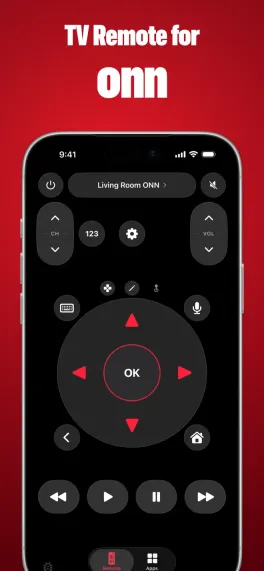
One app, three TV platforms
Roku
Roku TVs and streaming players, including onn Roku TVs.
Google TV
Google TV and Android TV, including onn sticks and boxes.
VIZIO
VIZIO SmartCast TVs and newer onn TVs powered by VIZIO.
Samsung Tizen, LG webOS, and Fire TV are not supported yet.
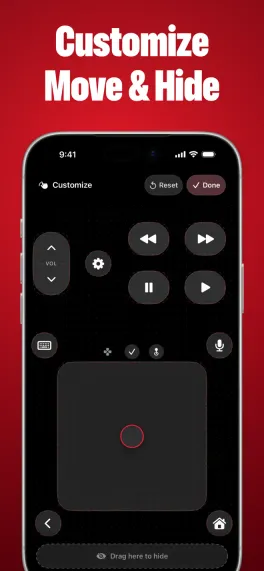
A remote that fits your hand
Move and hide buttons to make the remote yours.
Move or hide a button
Keep the controls you use close. Hide the ones you don’t need.
Type from your phone
Use your iPhone keyboard on supported TV text fields.
Get connected
Use the same Wi-Fi
Connect your iPhone and TV to the same network. Turn the TV on for the first connection.
Choose your TV
Open TV Remote+ and allow Local Network access. Select your TV from the list.
Enter the code, if asked
Google TV and VIZIO show a pairing code on the TV. Enter it on your iPhone, then use the remote.
A few things to know
Can I use it if I lost my remote?
Yes, if your TV is already connected to your network. If the TV has no network connection, you’ll need its physical controls or another remote to connect it first.
Why can’t the app find my TV?
Check that both devices use the same network. Allow Local Network access for TV Remote+ in your iPhone’s Settings. Guest Wi-Fi can prevent devices from finding each other. Get help.
Will volume work with a streaming stick?
It depends on the stick, the connected TV, and their HDMI-CEC settings. A connected remote does not guarantee volume or power control.
Is there an Android app?
TV Remote+ is available for iPhone. It can control an Android TV, but it does not run on an Android phone.